How to Authorize TaxTim for Submissions
Follow these 3 steps on eFiling to enjoy quick and easy tax return submissions
By Evan Robinson · Updated
These instructions assume that you are using the TaxTim service.
This authorization is a ONCE-OFF process, next year you won't have to do it.
Average time to finish: 3 minutes
STEP 1: Log into your SARS eFiling profile
Visit www.sarsefiling.co.za in a new tab / window.Click the LOGIN button

Thereafter enter your Login name and Password.
In case you have forgotten your login details, follow this link to recover them. Then write them down!
STEP 2: View Transfer Requests
Once you have logged in, click on the HOME tab.In the User menu, click Transfer Requests.
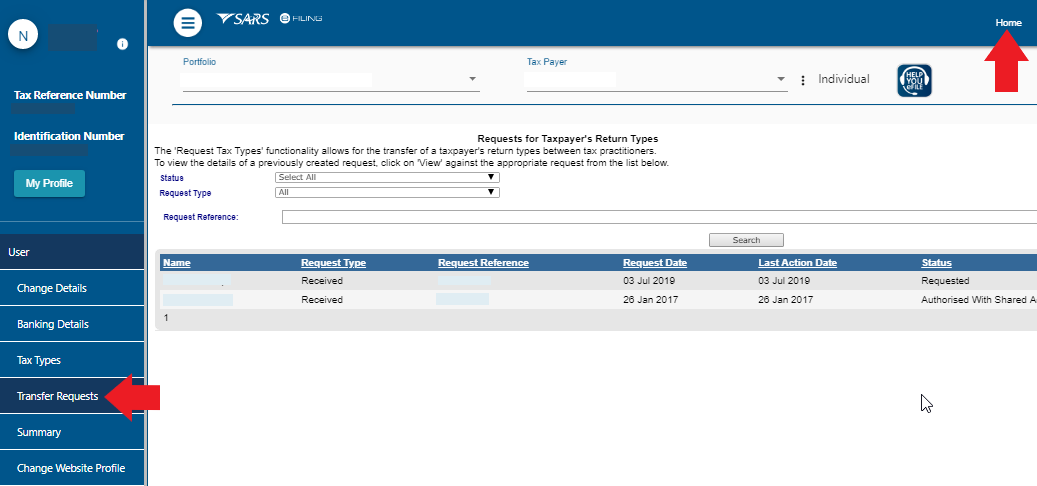
You should see a transfer request in a list at the bottom of the page.
If you DON'T see a request, you may need to wait a few minutes for SARS to process your request.
The status of this request will be "Requested" and the date will reflect when you initiated authorization.
On the right hand side of the request, click on View.

No transfer requests visible? Click here
STEP 3: Authorize Shared Access
On the next page you need to do two things:- Make sure both Individual Income Tax (ITR12) and IT Admin Penalty are checked (they should be already) and that your tax reference number appears next to both.
- Click on the Authorize Shared Access button.
MD Sevitz is the practitioner profile used by TaxTim for this process, as required by the Tax Act.
You can verify our practitioner registration at this link. Enter our practitioner number PR-0009352.
You will still have full control of your profile at all times and can cancel access at any point.

STEP 4: Check the authorization took place
Click on Transfer Requests in the left hand menu again.In the requests list you will see that you now share access with TaxTim:

STEP 5: Go back to the TaxTim website
Now that you have completed the steps on the SARS eFiling website, go back to the tab in your internet browser where your TaxTim account is loaded.Look for the Test authorisation button and click it to continue.
Can't find the tab? Log into the TaxTim website and click on My Returns, then the relevant tax return and follow the links until the submission page.