The new SARS auto-assessment
How to reject the SARS auto-assessment
By Alicia Human · Updated
Step 1:
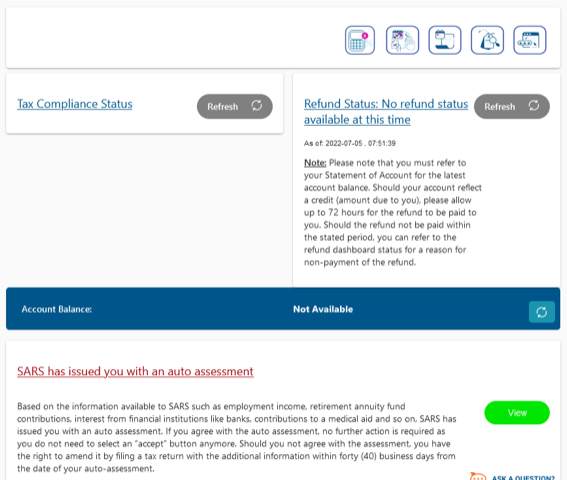
If you have been auto-assessed by SARS, you may see the screen below when you log into SARS eFiling.
Please click on "View".
You may also see this screen:
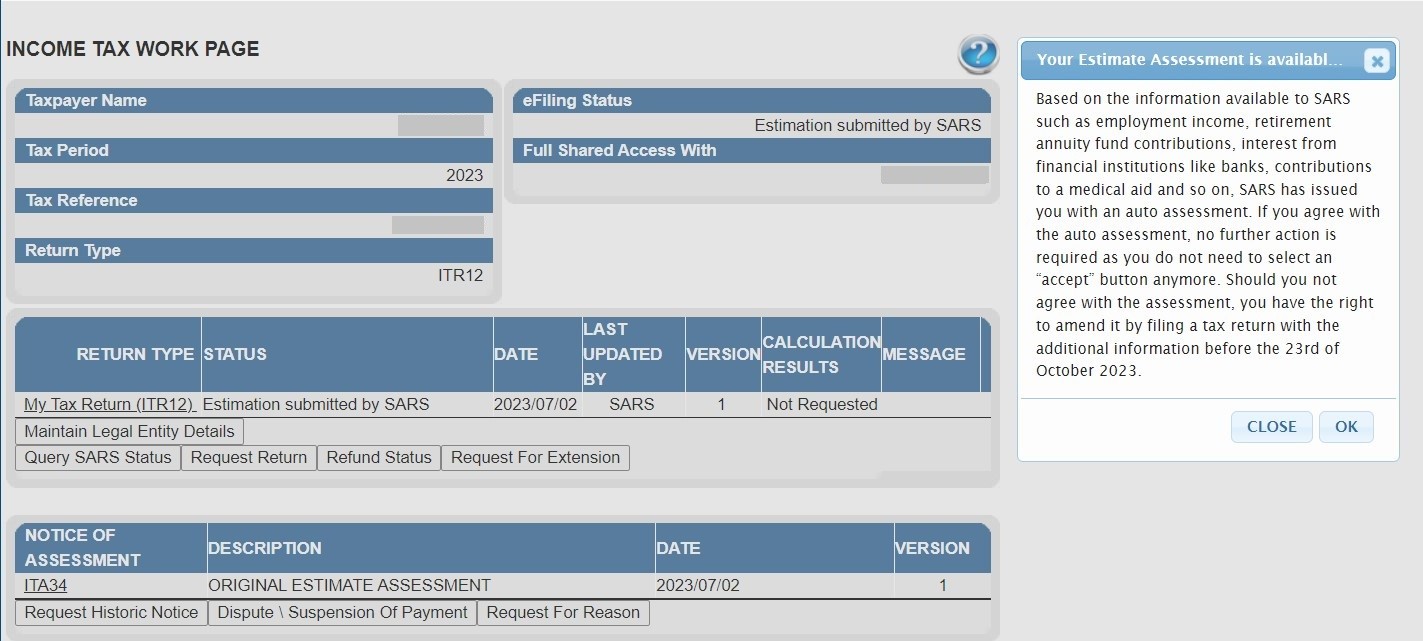
If you click on "View" or "OK", both will send you to the following screen.
Step 2:
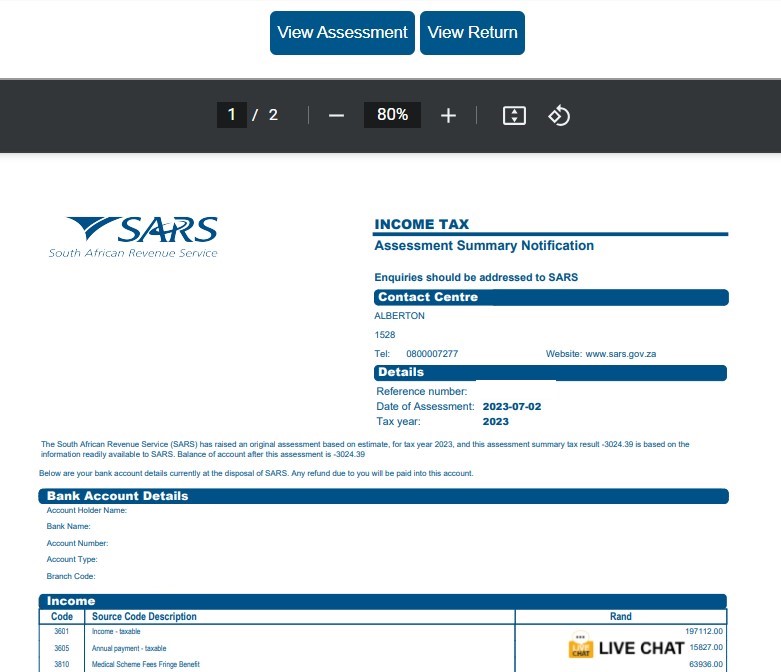
You can choose to either "View Assessment" or "View Return".
If you click on "View Assessment", the screen below appears and you will see the final balance of the auto-assessment.
If you click "View return" you will see the return that SARS has generated to produce the auto-assessment.
Step 3:
Click "Edit Return" to amend the auto-assessment and file your return.
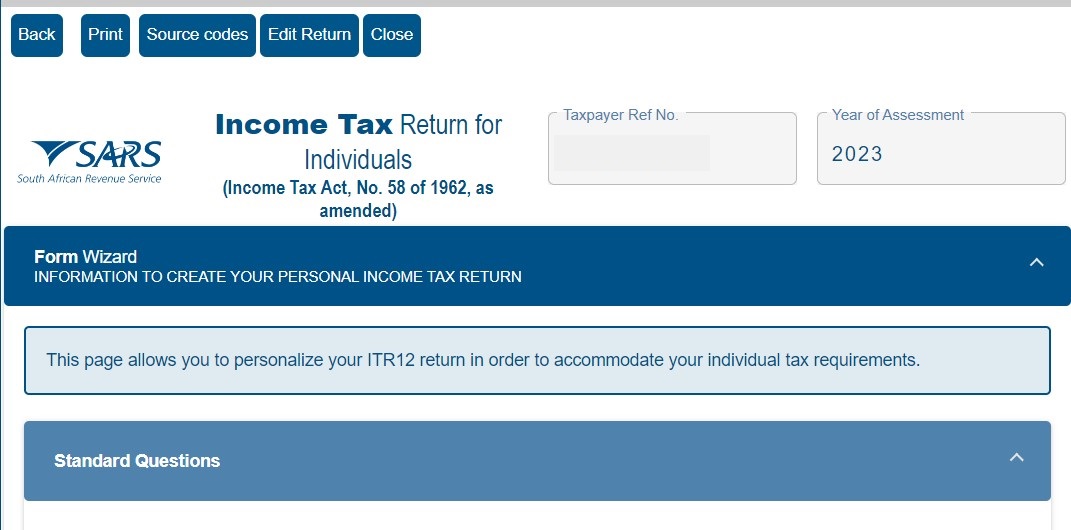
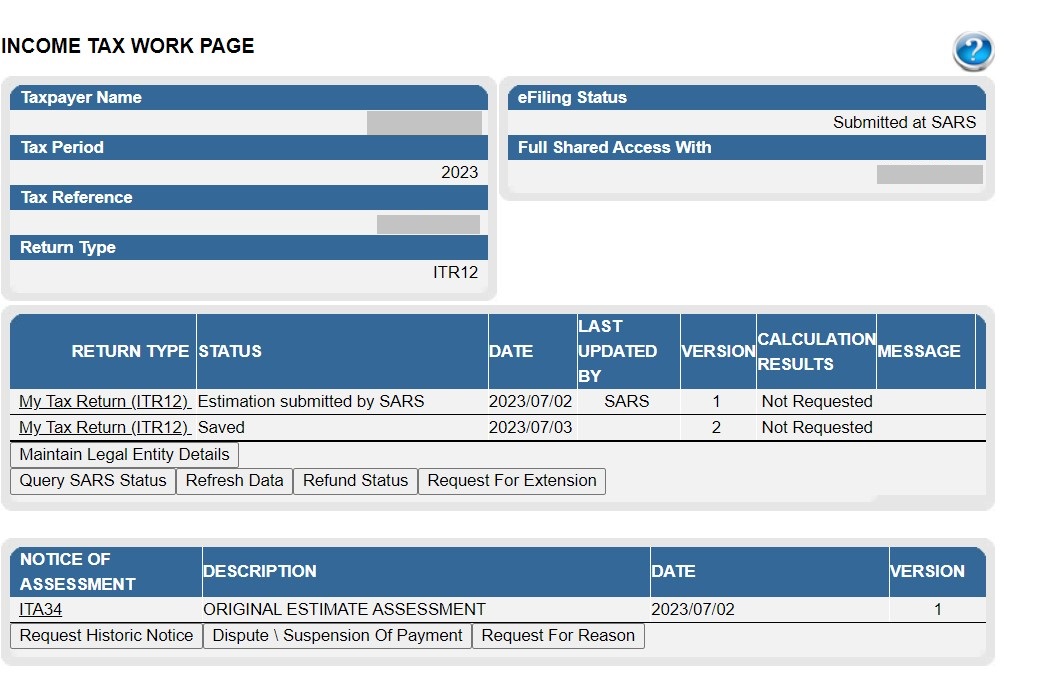
After you edit the auto-assessment, your Income Tax Work Page will have two returns on it. Version 1 will be the auto-assessment. Version 2 will be the new issued return for you to complete and submit to SARS.
Important:
- You only have until the end of tax season to resubmit your tax return. If you miss this deadline, your auto-assessment will become your final assessment. You will however, be able to request an extension on eFiling if you cannot meet this deadline.
- Remember, the SARS auto assessment is based on the data made available to SARS by 3rd parties. If you had out of pocket medical expenses, donated to a Public Benefit Organisation, qualify to claim travel expenses or home office costs, used a personal laptop for work purposes, or earned rental or freelance income, SARS won't know of it and the auto-assessment won't include it either.
Please read our FAQ or further information on auto-assessments.